Add deals
Add a property to your workspace from an address or listing link, or type in the facts yourself.
Open the Add a deal window
- Go to Deals.
- Click Add deals (on a phone, + Add deals at the bottom of the screen).
The Add a deal window has two tabs:
- Paste a link or address — the agent reads the listing and does the first research pass for you (auto import).
- Enter it yourself — a step-by-step form for facts you already have (manual entry).
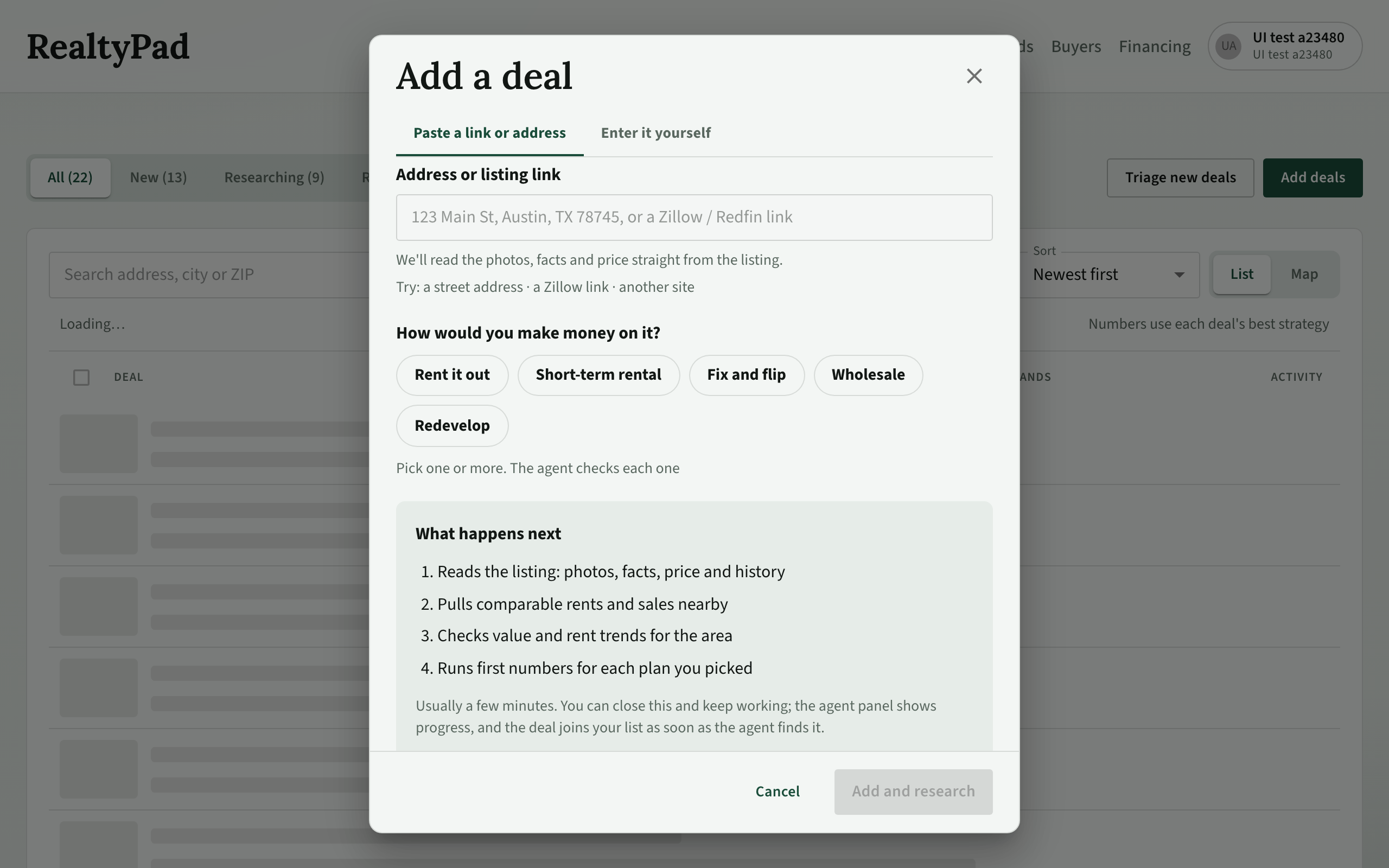
Auto import from an address or link
Use this when you have a street address or a listing link and want the agent to do the first pass.
- In Address or listing link, paste a street address or a listing URL. A tag such as ✓ Address or ✓ Zillow link shows what was recognized.
- Under How would you make money on it?, pick one or more plans: Rent it out, Short-term rental, Fix and flip, Wholesale or Redevelop. The agent checks each one.
- If you would live in the home yourself, click I'd live in it instead (shown only when your workspace allows owner-occupied deals). Click Back to investing to undo.
- Click Add and research.
The window lists what happens next: the agent reads the listing (photos, facts, price and history), pulls comparable rents and sales, checks area value and rent trends, and runs first numbers for each plan you picked.
Where the listing comes from
The agent looks for the listing on these sites, in this order, and uses the first one that has it: Zillow, Redfin, Realtor.com, Trulia, Auction.com, HUD, Craigslist. A Craigslist or broker-site link does not carry a street address, so the agent searches for the address first.
If the address is already in your workspace, the agent uses that deal and continues as research. It does not create a duplicate.
Follow the progress
After you click Add and research, the Agent · Auto import panel opens beside your deals list.
- A progress bar and Step N of M show where the agent is. Show what it is doing opens the step's own log.
- Changed on this deal so far lists the parts of the deal the agent has updated.
- You can close the panel and keep working. Progress is saved on the run, and the deal joins your list as soon as the agent finds it.
- See the deal while this finishes opens the deal before the run ends.
- Pause after this step and Stop control the run. Resume continues a paused run. Retry starts a stopped or failed run again.
When the run ends, the panel shows Finished with the main figure, the score change, What changed and Still open. Click See the deal to open it, or Full log for every step.
The full log page
Full log opens the run's own page. It shows each step in order, including the Planning next step lines where the agent explains why it chose the next step. You can leave this page and come back; the run keeps going. When the run is done or paused, Open deal takes you to the deal.
Pauses are normal
Most auto imports pause before they finish. This is expected, not a failure. The agent stops when an input such as rent, tax or insurance still needs a person to confirm it.
- If the agent asks a question, the panel shows Needs your input. Pick an answer, or type a value and click Use this.
- Otherwise, open the deal and use the Work tab to fill the gaps. See The deal page.
Auto import does not change the deal's status. Use Underwrite on the deal's Financials tab when you are ready.
Research an existing deal
To run the same agent on a deal that is already in your workspace:
- Open the deal.
- On the Home tab, click Research.
The agent skips the listing import and runs only the research steps the deal still needs. The same progress panel opens. The research buttons on the other tabs refresh one area at a time and may run a step that area depends on.
Enter a deal yourself
Use Enter it yourself when you already have the facts or there is no listing link. Only the address is needed to save; fill in the rest now or later.
- Address — Address line 1, City, State and Postal code. Choose a Capture source (where you first found the lead). Add a Primary listing URL if you have one.
- Price and costs — Income strategy, an optional Financing profile, Ask price, Purchase, and the fields for your strategy (for example Est. rent / mo, ADR / night and Occupancy, or ARV and Repairs), plus Tax / yr, Insurance / yr and HOA / mo.
- The property — Property type, Beds, Baths, Sqft, Year built, Lot (acres), Build type, Builder and Amenities.
- Photos and description — choose photo files or paste image URLs, and paste the listing write-up.
- Notes — Realtor and Notes from realtor.
Click Next: … (for example Next: price and costs) to move through the steps, or click a step on the left. Click Save deal at any time once the address is valid. The deal opens when it is saved.
If the address is already in your workspace, you see This one's already in your deals. Click Open the deal, or Update N numbers to save the new numbers you entered. Fields you left blank change nothing.
Daily limits
Each workspace can start a set number of runs per day. The count resets at midnight UTC.
| Plan | Auto imports per day | Research refreshes per day |
|---|---|---|
| Basic | 10 | 50 |
| Pro | 20 | 100 |
| Team | 40 | 200 |
| Broker | 80 | 400 |
| Founders VIP | Unlimited | Unlimited |
Auto imports count against the first limit. Research, Underwrite and the research buttons on deal tabs count against the second. When you reach a limit, you see "Daily … limit reached" and can try again the next day. Manual entry has no daily limit.
See Account and settings to change your plan.