Contacts
Contacts is your workspace's book of people and businesses: agents, sellers, wholesalers, property managers and buyers.
Open it from the account menu → Contacts, or go to /contacts. It sits in the Account area, so the Account menu stays on the left (see Account and settings).
Two lists: My team and Shared directory
Use the switch above the list to choose which contacts you see:
- My team — contacts on your workspace's own list. Your notes, tags and deal links live here.
- Shared directory — contact cards that other workspaces chose to share. You can read them, and you can add one to your own list.
To add a shared contact to your list, click Import on its row (or Import to team list on its page).
Your own profile can appear in the shared directory too. You control that with Share in contact directory on your Profile.
Search
Type in Search name, company, phone or email. The list filters as you type. The count under the list shows how many contacts match.
Read a contact
On a wide screen, click a contact in the list. Its details open in the panel on the right:
- Call, Text and Email buttons open your phone, messages or email app. A button is greyed out when that channel is missing.
- How to reach lists every phone and email. The one your team prefers is marked "preferred".
- Your notes shows your team's notes and tags for this person. Only your team sees notes and tags.
- On your deals lists the deals this person is linked to, with their role on each deal.
Click Edit to open the full contact page. On a phone, tapping a contact opens the full page directly.
Add a contact
- Click Add contact (on a phone, + Add contact at the bottom of the screen).
- Enter a Name. This is the only required field.
- Optionally fill in Business, Phone, Email, Website and Description.
- Click Create.
If the phone or email already belongs to a contact on your team list, RealtyPad reuses that contact instead of making a duplicate. A note tells you which contact it reused.
The contact page
The full page (/contacts/<id>) has two parts.
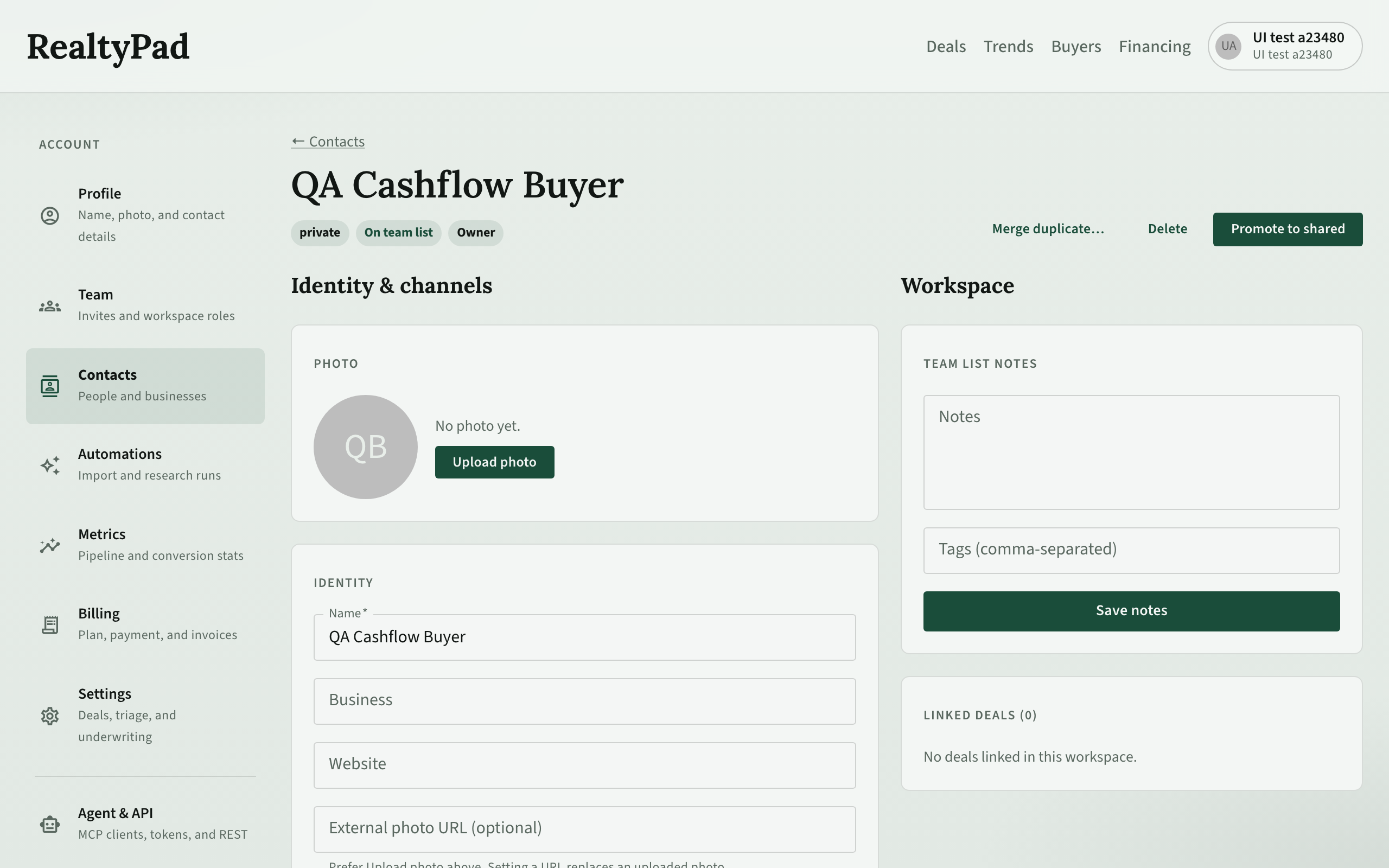
Identity & channels
- Photo — upload or remove a photo.
- Identity — Name, Business, Website, Description. Click Save identity. Only the workspace that created the contact can edit these.
- Channels — every phone and email, with its Scope: Private (only your workspace) or Shared. Add a channel with Kind, Value and Label, then Add. Click Prefer to make a phone or email the one your team uses first. Delete removes a channel.
Workspace
- Team list notes — Notes and Tags (comma-separated) for your team only. Click Save notes.
- Linked deals — every deal this contact is on, with the role.
The buttons at the top depend on the contact:
| Button | What it does |
|---|---|
| Merge duplicate… | Pick duplicate contacts and fold them into this one. |
| Delete | Removes the contact from your contact book. Its deal links are removed too. If the person is on a buyer profile, RealtyPad asks before it detaches them. |
| Import to team list | Adds a shared-directory contact to your list. |
| Remove from list | Takes an imported contact off your team list. The shared card stays in the directory. |
| Promote to shared | Puts a contact your workspace created into the shared directory. |
Link a contact to a deal
Deal contacts show on the deal's Listing section, on the Details tab.
- Open the deal and go to Listing → Details.
- Click Add listing contact (or Add on an existing row).
- In Add contact to deal, pick a Role: Listing agent, Selling agent, Buyer agent, Wholesaler, Seller, Buyer, Property manager or Other.
- Choose Link existing and pick someone from Select from team list…, then click Link contact. Or choose Create new, fill in Name, Business, Phone and Email, then click Create & link.
The deal then appears under On your deals on that contact. See The deal page for the rest of the deal.
Link a contact to a buyer
A buyer profile can hold one or more contacts (for example a primary contact and a spouse or partner). You add them on the buyer's Contacts tab. Share links and magic-link sign-in go to the contacts on that buyer profile. See Buyers and Share deals with buyers.