Buyers
Buyers is your buyer book: the investors and home buyers you send deals to, with what each one is looking for.
The buyer list
Click Buyers in the top menu.
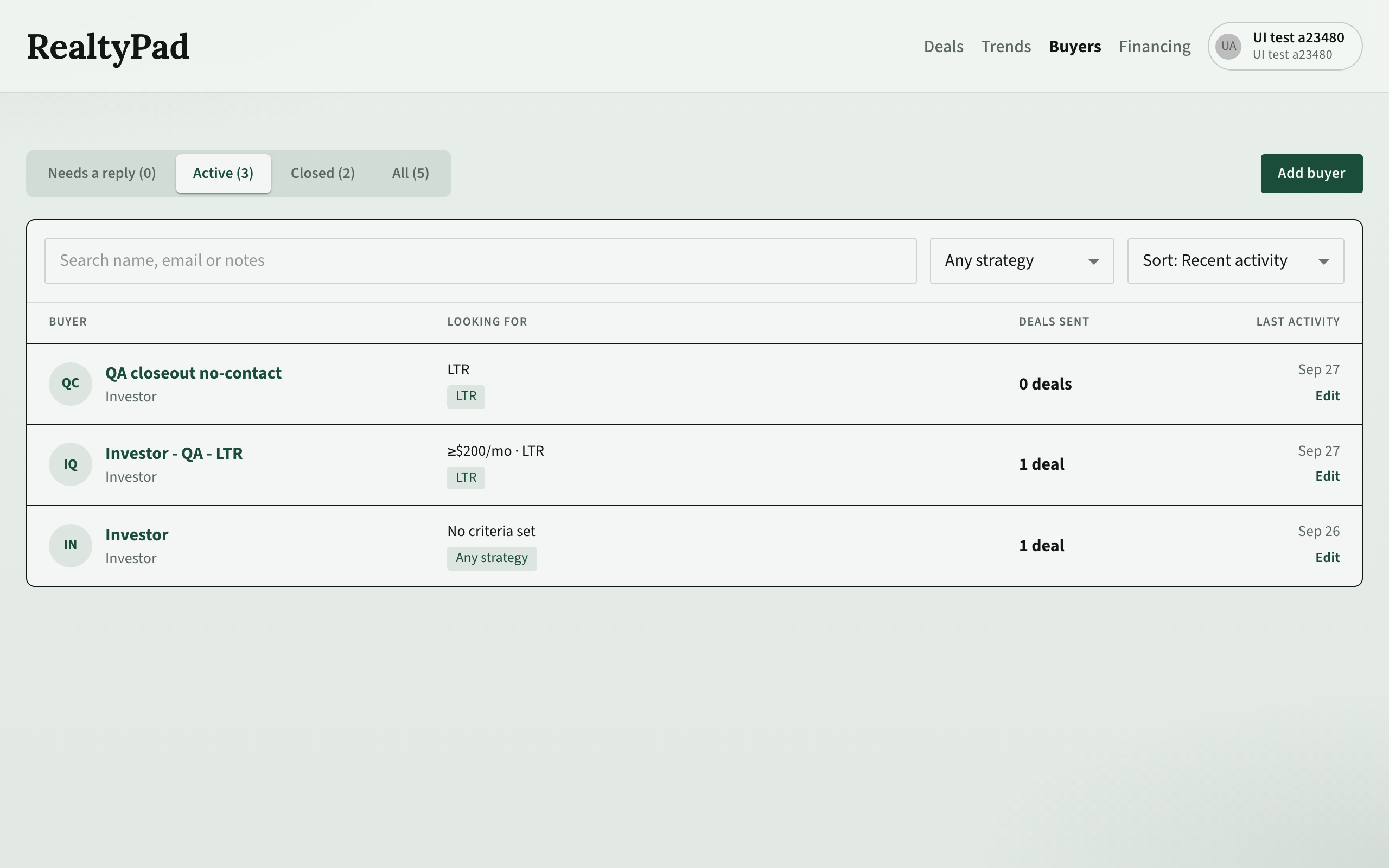
- Tabs: Needs a reply (buyers with unread messages), Active, Closed and All. Each tab shows its count.
- Search: type in Search name, email or notes.
- Filter: pick one strategy, or Any strategy.
- Sort: Sort: Recent activity (newest message or change first) or Sort: Name.
Each row shows the buyer, what they are Looking for, how many Deals sent, and Last activity. Click the name to open the buyer. Click Edit to change the profile in place.
Add a buyer
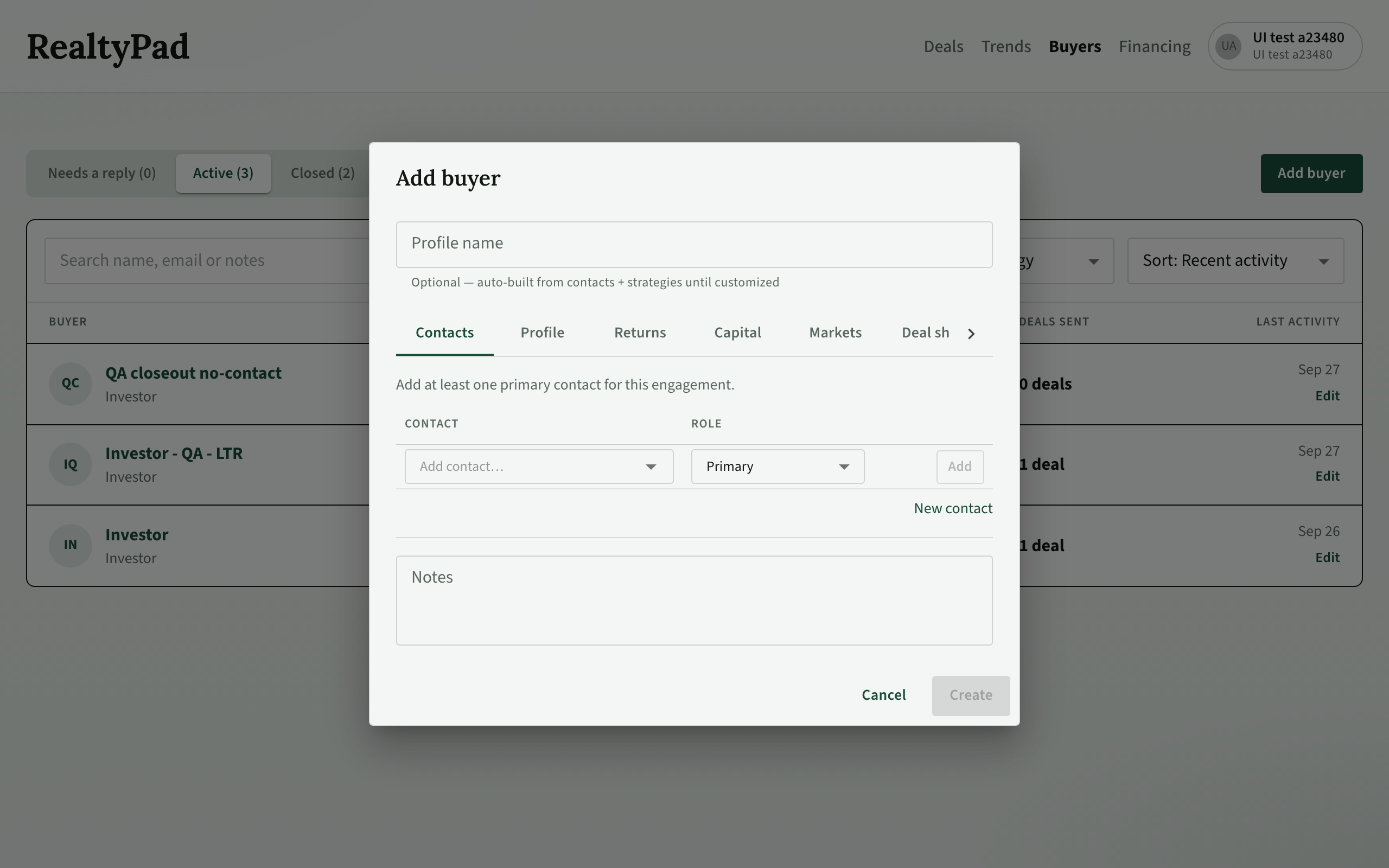
- Click Add buyer.
- On the Contacts tab, choose a person in Add contact…, set the role, and click Add. Click New contact if the person is not in your contacts yet. Every buyer needs at least one Primary contact.
- Fill in the criteria tabs (see below). All criteria are optional.
- Leave Profile name blank to get an automatic name, or type your own.
- Add Notes if you like, then click Create.
Buyer criteria
Matching compares each deal with these fields. Leave a field blank when the buyer has no limit.
| Tab | Fields |
|---|---|
| Profile | Buyer type, Income strategies |
| Returns | Target ROI %, ROI type, Min appreciation % / yr, Min cashflow $/mo (investors only) |
| Capital | Preferred financing profile, Max financing rate %, Cash on hand |
| Markets | Preferred markets (empty means any market) |
| Deal shape | Min price, Max price, Min beds, Max beds, Allowed build types, Preferred builders, Max repair estimate |
| Amenities | Required amenities, Nice to have |
Buyer type
Buyer type is Investor by default. If your workspace allows owner-occupied deals, you can also choose Individual for someone buying a home to live in. Individuals have no Income strategies or Returns tab.
Preferred financing profile and max rate
Pick a Preferred financing profile from your workspace's financing profiles. Matching uses that profile's rate as the rate the buyer can get.
Max financing rate % is the highest rate the buyer will accept. When you set both, matching uses the lower of the two. The max rate is not used for a cash profile or when no profile is set.
Profiles, contacts and roles
A buyer profile is one engagement: a set of criteria and the deals you send for it. It is not one person.
- A profile can have several contacts. Each has a role: Primary, Spouse, Partner, Teammate, Agent or Other.
- The same contact can be on more than one profile, for example a new profile for each purchase.
- Contacts live in Contacts. Deleting a buyer profile does not delete its contacts.
Automatic names
Until you type your own name, the profile name is built for you and updates when the profile changes. It joins the buyer type, the first names of the primary, spouse and partner contacts, the strategies, and the financing profile, for example "Investor - Sam & Alex - LTR / STR" followed by the financing profile's name.
To go back to the automatic name, open Edit buyer and click Reset name to auto-generated in the Profile name field.
The buyer page
Click a buyer's name to open their page.
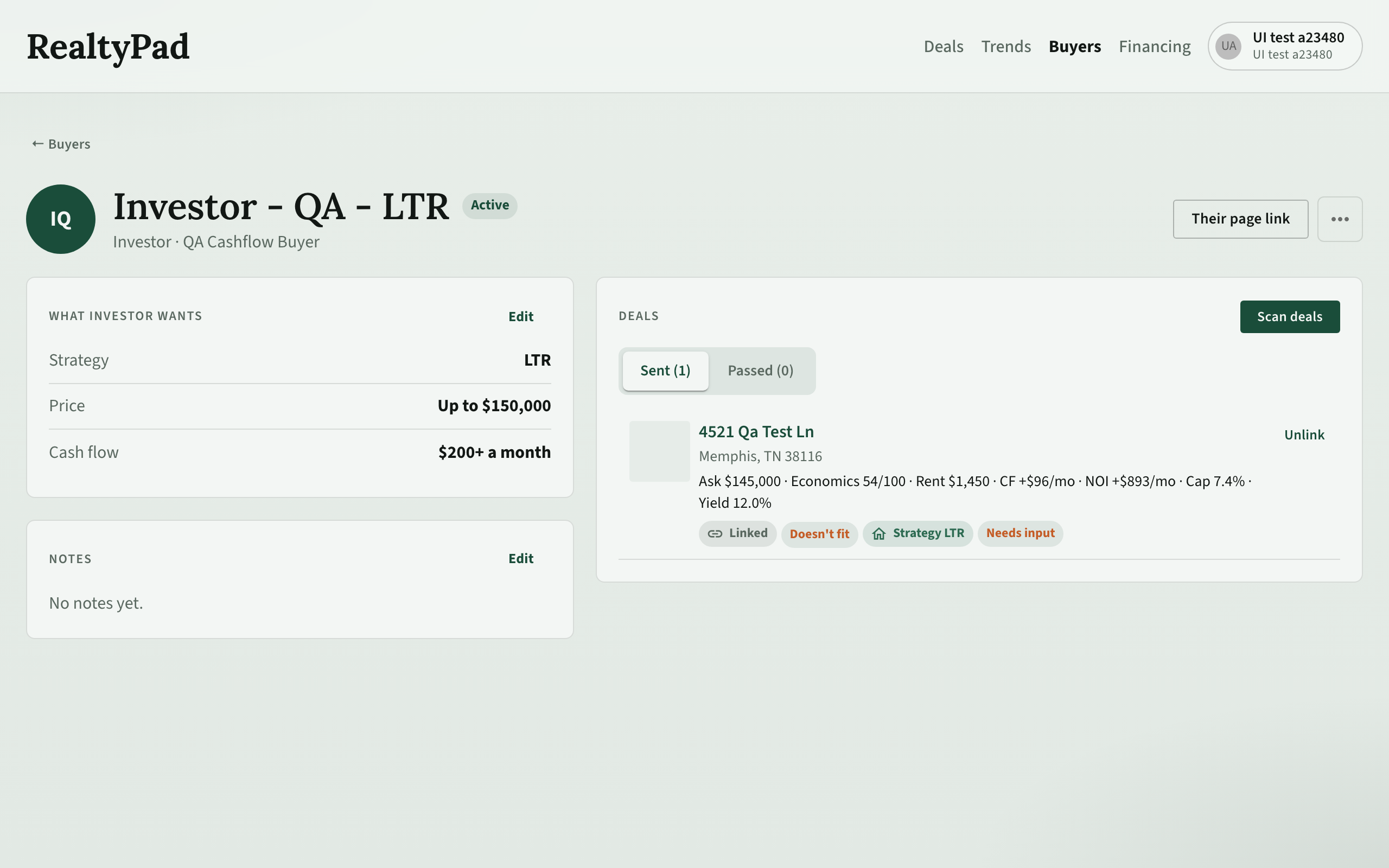
- The header shows the name, Active or Closed, the buyer type and the primary contact.
- What … wants sums up the criteria. Click Edit to change them.
- Notes shows your notes about the buyer.
- Deals lists the deals linked to this buyer, on the Sent and Passed tabs. Click Unlink to remove a deal.
- Scan deals checks your deals against this buyer and opens Deal matches. Click Link on a match to add it. Near misses shows deals that almost fit and what blocks them.
- Create their page link makes one link that shows the buyer all their deals. See Share deals with buyers.
- The More actions (…) menu has Close out, Reopen and Delete.
Close out a buyer
When a buyer's purchase is done, close the profile so it stops matching new deals.
- On the buyer page, open the More actions (…) menu and click Close out.
- To keep working with the same people, tick Also create a new active profile with the same contacts and criteria.
- Click Close out.
The profile moves to the Closed tab. You cannot scan deals or create a page link for a closed buyer. Use Reopen in the same menu to make it active again.
Closing is always your choice. When you set a buyer to Under contract on a deal, or the deal itself is closed, RealtyPad asks Close buyer profile? but never closes it for you.
Delete removes the profile for good and unlinks its deals. Use Close out to keep the history.
Working with agents
Connected agents can read and update your buyer book. Agents use get_agent_manual(workflow=buyers); see the buyers workflow.