The deal page
Open any deal from the deals list to see its numbers, its status and everything you know about the property in one place.
Layout
The page has three parts:
- Header. On Home you see the photos, the asking price, the address and a row of chips. On every other section the header shrinks to a bar that stays at the top: address, price, status chip and Share.
- Sections. On a computer they are in a sidebar on the left, under Deal. On a phone the same sections are a row of tabs that you scroll sideways. Some sections show a count, for example Comparables (3).
- Content. What the selected section shows.
Each section has its own link, so you can bookmark or send it. The address bar shows ?tab= and the section name, for example ?tab=financials or ?tab=comparables.
| Section | What it is for |
|---|---|
| Home | Summary of the deal and what to do next |
| Property | Property facts, where each fact came from, and open questions |
| Listing | Listing write-up, photos and price history |
| Financials | Cash flow or profit, assumptions, and loan comparisons |
| Hold projection | Returns and equity over the years you hold |
| Expenses | Fix-up costs and monthly costs |
| Comparables, Appraisal & Tax, Trends, Growth drivers, Buyers, Documents | Evidence for the numbers (see Deal evidence tabs) |
| Work | Status, to-dos and agent history |
For an owner-occupied deal, Hold projection and Expenses are hidden. Trends is greyed out until the deal has a linked market.
The header
On Home, the header shows:
- Asking price, with a bell button for Buyer messages (unread replies from buyers) and Share (see Share deals with buyers).
- Address. The small icon next to it opens the listing.
- Status chip. Click it to change the status (see Change the status).
- Buyers chip, showing linked and matching buyers (for example 2/5). Click it to open Buyers.
- Other chips when they apply: Off market, Auction, Archived and Owner-occupied.
- A line of facts (beds, baths, size) and key numbers, including Tax and Ins. An orange value is an estimate, not a bill or a quote.
- Score chips (see Scores).
- When the deal was captured, and its lead source.
When an agent is working on the deal, an Agent working chip appears next to the status. It changes to Agent needs you when the agent has paused with a question. Click it to open the progress panel.
Home
Home is the summary of the deal.
- Financials card. The headline result for the strategy: CF / mo (cash flow after mortgage and monthly costs), Profit, Spread, Residual, or Housing / mo for owner-occupied deals. Next to it is Score for this strategy out of 100, with the top reasons for the score. Below are key numbers: for rentals Rent / mo, NOI / mo, Cap rate and DSCR (lenders usually want 1.2 or more); for flips and wholesale Ask, Fix-up total and Monthly costs.
- Strategy tabs. If you compare more than one strategy, tabs at the top of the card switch between them (for example Long-term rent and Fix & flip). A strategy that the deal is not scored as shows Not the active strategy. Use +/− or Edit strategies to choose which strategies to compare. Open Financials → opens the full section.
- Next steps. A stage bar (New, Researching, Ranked, Pursuing, Closed) and a list of what needs you: Blocking gaps, items to Check, open to-dos (Handoff) and unread Buyer messages. Each item has a link that opens the right section. When the list is empty, it says "Nothing needs you right now."
- Research. Tiles for Comps, Expenses, Hold projection, Appraisal & Tax, Trends and Growth drivers. Each tile shows Done or Needs work and a key value. Click a tile to open that section.
- Property card. A map, the estimated value, tax per year, parcel number and the start of the listing write-up, with links to Property and Listing.
- Activity. The current Status note, then comments. To add a comment, type in Add a comment… and click Post. Comments are the place for longer notes and research briefs.
Research with agent
Most sections have a Research with agent button at the top right. Hover over it to see what it does in that section.
- On Home it researches the whole deal. The agent picks only the steps that the deal still needs, for example property facts, photos, comps or tax.
- On Financials it underwrites the deal.
- On an evidence section it researches only that area, for example comps or costs. It can run other steps first if they are needed.
A side panel shows the progress. You can close it and keep working; the run continues. Many runs pause when rent or other inputs need you to check them. That is normal. Open Work or the Next steps list to fill the gaps.
Financials
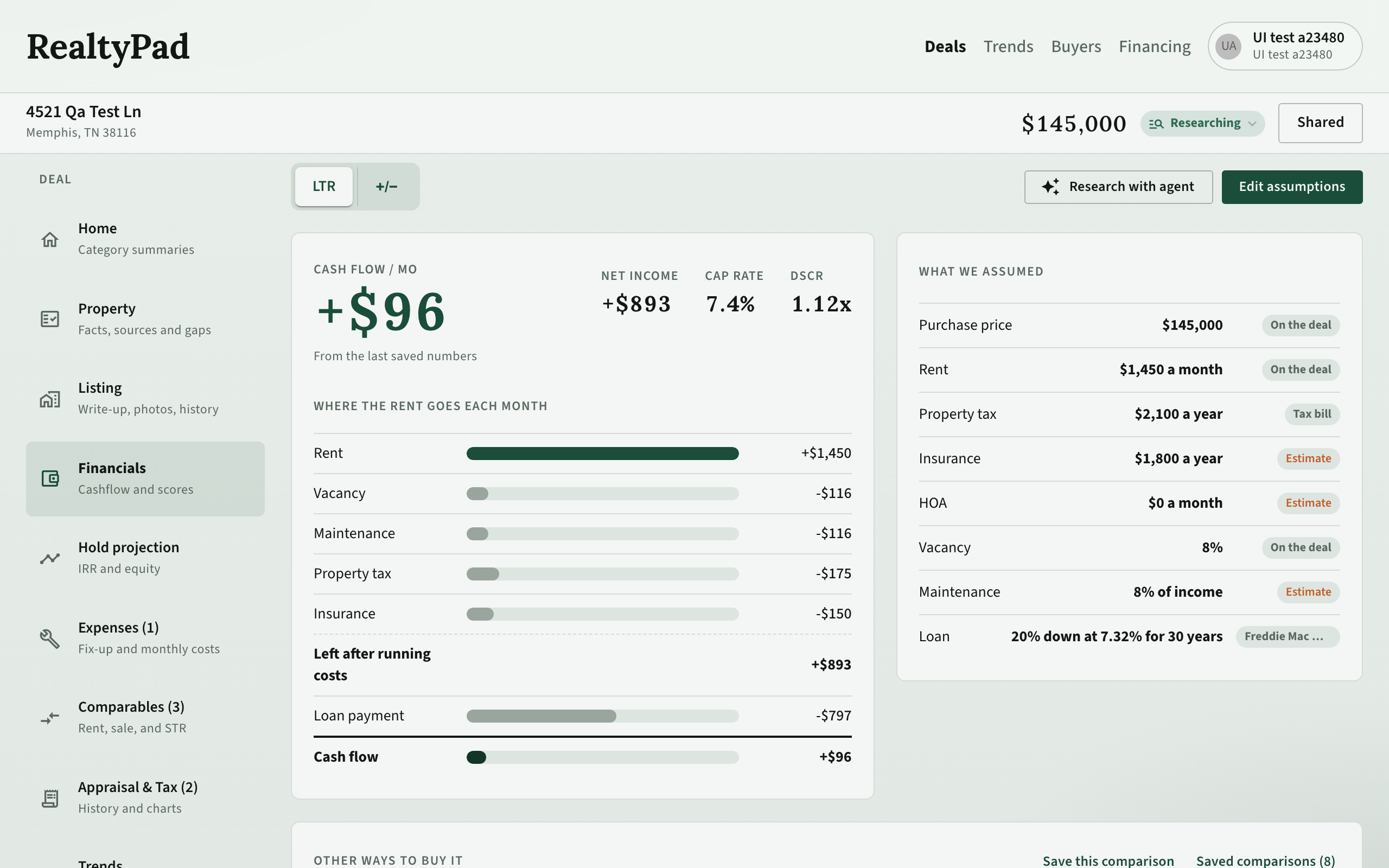
Financials is the underwriting worksheet.
- Pick a strategy from the tabs at the top (LTR, STR, Fix & flip, Wholesale, Redevelop). If you look at a strategy that the deal is not scored as, click Make it the active strategy to score it that way.
- Click Edit assumptions to change the inputs: deal purpose, loan, asking and purchase price, tax, insurance, HOA, rent or nightly rate, sale price (ARV), fix-up costs, vacancy and more. The fields change with the strategy. Click Save.
- Read the result card: the headline number, its key figures, and a bar chart of Where the rent goes each month (or Where the money goes on this deal for a flip).
- Check What we assumed. Each input shows its source, or an Estimate tag when it is not confirmed yet.
Compare loans and save scenarios
Other ways to buy it lists each financing profile for this strategy, with the result, the Score, and what to Watch out for (for example "Rent capped" or "Tax is an estimate"). Click Use this to put that loan on the deal. Financing profiles are set up on Financing profiles.
To keep a comparison:
- Click Save this comparison, add an optional label, and click Save snapshot.
- Find it under Saved comparisons. Click Details to see its rows, click a row to pick it, then click Apply to put those numbers on the deal.
- To try a different price, click New variation…, enter a Purchase override, and click Save variation.
Scores
| Score | What it tells you |
|---|---|
| Overall | The headline score, from −100 to +100. It combines the other four. |
| Economics | How good the deal looks for this strategy (cash flow, flip profit or wholesale spread). Shown as low, med or high. |
| Data | How complete and confirmed the inputs are. It is about the data, not about how good the deal is. |
| Growth | Whether prices and rents are rising or falling here compared with the wider market. |
| Drivers | The balance of local demand signals on Growth drivers (see Deal evidence tabs). |
When you compare two or more strategies, the header chips show the average, labelled Avg · 2 strategies (or more). Each strategy tab shows its own score. Owner-occupied deals get a housing cost, not a score.
Hold projection
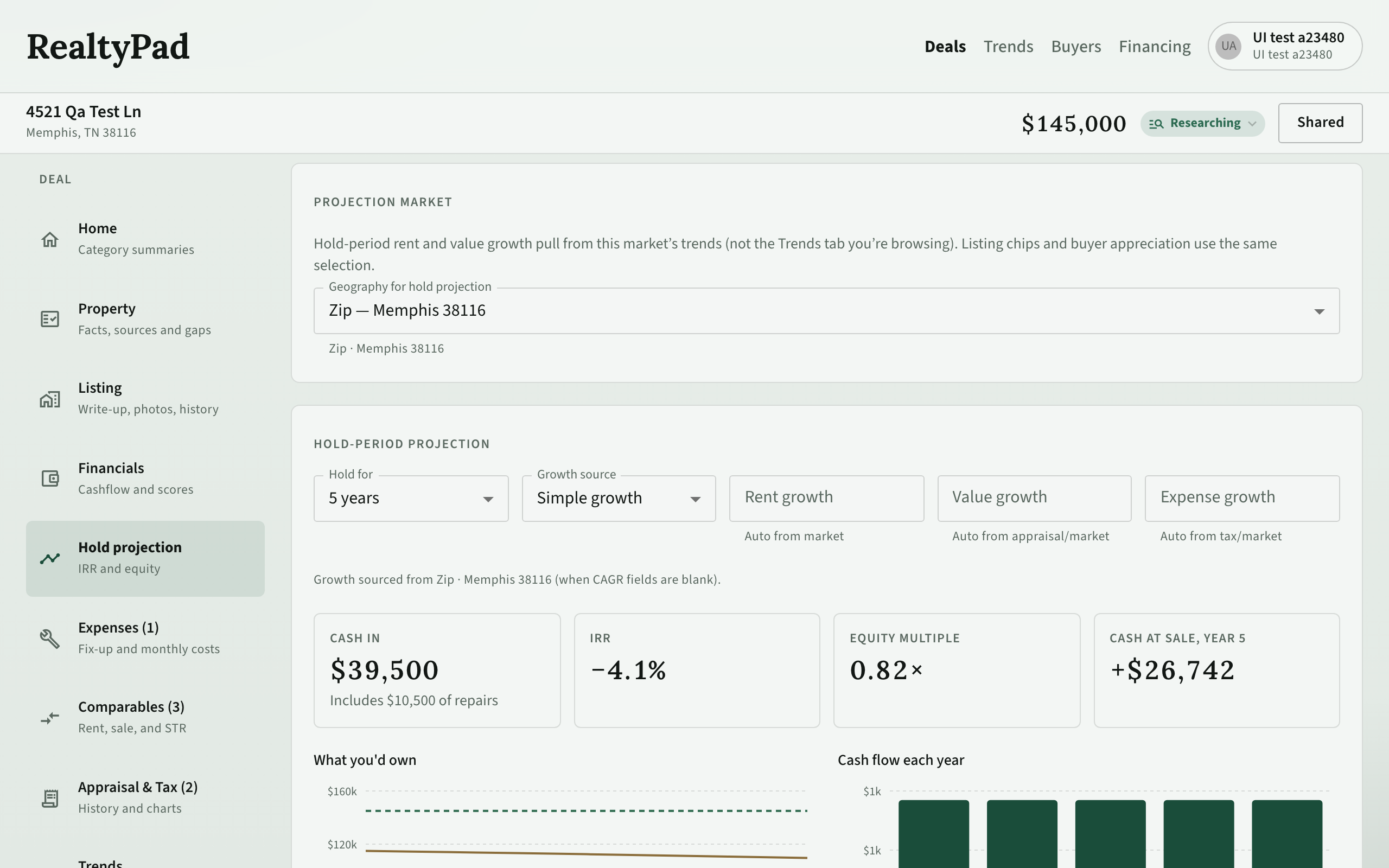
Hold projection shows what the deal could return over time.
- Under Projection market, pick the geography whose trends drive rent and value growth.
- Choose Hold for (3 to 30 years) and a Growth source: Simple growth or Follow the market forecast.
- Change Rent growth, Value growth or Expense growth if you want. Left alone, they come from the market and appraisal data.
You see Cash in, IRR, Equity multiple and the cash at sale, a chart of What you'd own (property value, loan left, equity), Cash flow each year, and a year-by-year table. Click Show all columns for more detail.
Work
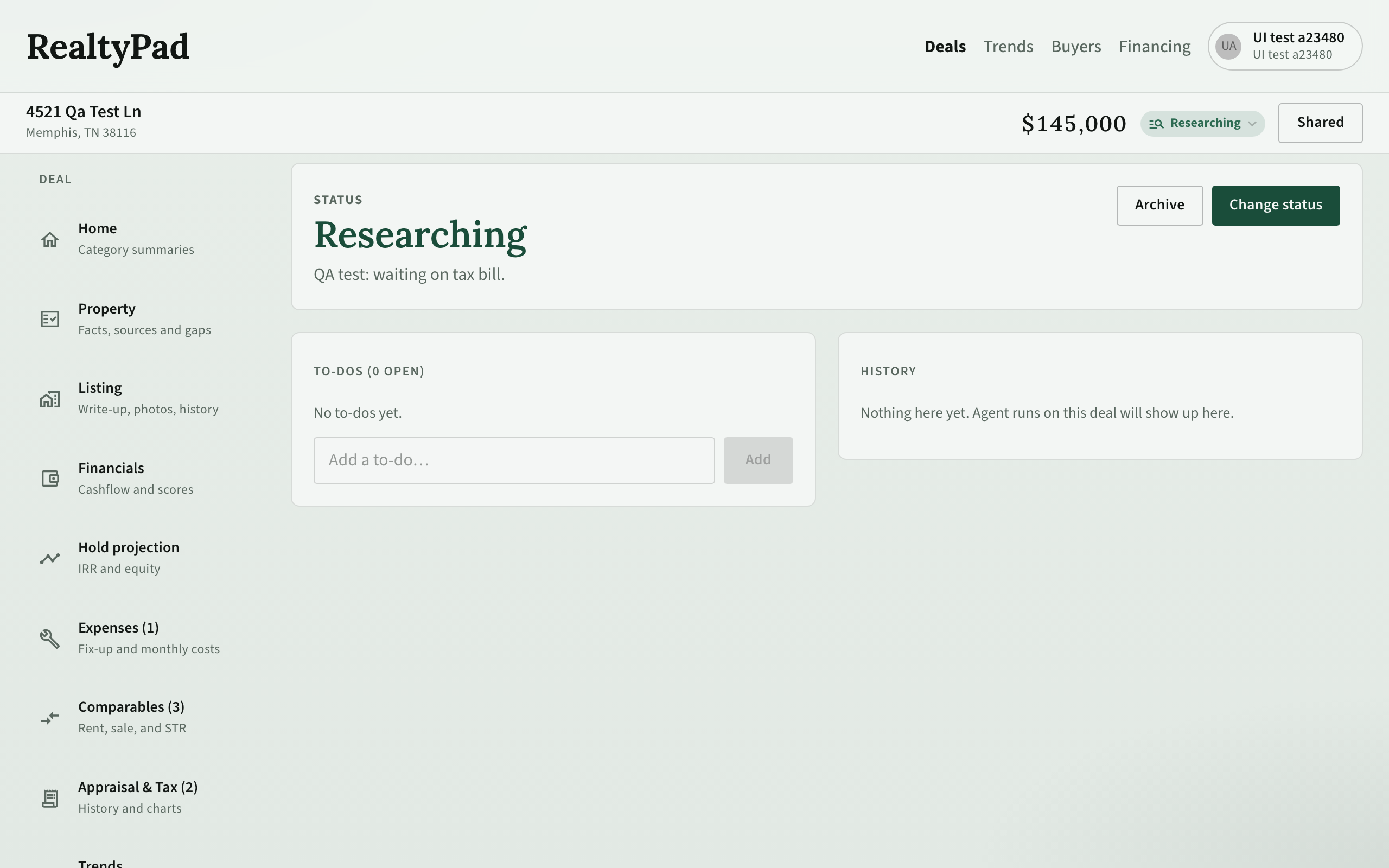
Work shows the status with its note, and has three jobs:
- To-dos. Type in Add a to-do… and click Add. Tick a to-do when it is done. Show done shows finished items. Open to-dos also appear in Next steps on Home.
- History. Every agent run on this deal. Click Open to see a run's progress.
- Archive. Click Archive to hide the deal from default lists and triage. Its status and numbers do not change. An archived deal shows a banner with Unarchive.
Change the status
- Click Change status on Work, or click the status chip in the header and pick a status.
- In Change status, check the Status. The text under it explains when to use it.
- Write a short Status note (about two sentences). It is required for Passed and Blocked. If the scoring model wrote an automatic note, leave the box empty to keep it.
- Click Save.
| Status | Use it when |
|---|---|
| New | The deal just arrived and research has not started. |
| Researching | Research is in progress, or the numbers are not clear yet. |
| Blocked | A fact from outside is missing. Unblock it when the fact arrives. |
| Hold — no buyers yet | Research is done and the numbers work, but no buyer fits yet. |
| Ranked | The numbers work and at least one buyer matches. |
| Pursuing | You are making an offer or the deal is under contract. |
| Passed | The deal is below your bar, has a structural problem, or no buyer fits. |
| Closed | The deal is done. |