Account and settings
The Account area holds your profile, your team, billing, workspace settings and agent access.
Open the Account area
Click your name in the top-right corner to open the account menu. Pick any item to open it. On a computer, the Account pages show a left menu with the same items. On a phone, they show as scrollable tabs at the top.
Some items show only for some people:
- Team and Metrics show only for workspace owners and admins.
- Activity shows only on plans that include it (Team, Broker and Founders VIP).
Profile
Profile (/account/profile) is about you, across all your workspaces.
- Photo — Upload photo or Remove it.
- Details — Display name, Contact email, Phone, Business name, Website and About. Your Login email shows here but you cannot change it on this page. Click Save profile.
- Share in contact directory — when on, other workspaces can find your contact card and import it (see Contacts). When off, only your workspace sees your details.
- Workspaces — every workspace you belong to, with your Role. Click Switch to move to another one, or Create workspace to start a new one. See Team workspaces.
- Security — change your password (Update password), or set one with Set password if your account has none yet. Changing or resetting your password signs you out everywhere else, and any agent token you minted earlier stops working: mint a new one.
- Two-factor authentication — click Set up authenticator, scan the QR code with your authenticator app, enter a code, then click Confirm and enable. Save the backup codes it shows: each works once if you lose your authenticator. An authenticator code also works only once, so wait for the next code if one is refused. Use Disable 2FA to turn it off.
If your email is not verified yet, a note at the top offers Resend. You need a verified email to mint agent tokens and to invite teammates.
Team
Team (/account/team) is where owners and admins manage people.
- Invite teammate — enter an Email, pick a Role (Member or Admin) and click Send invite. RealtyPad emails the invite when it can and shows a link you can copy.
- Pending invites — click Revoke to cancel an invite.
- Members — change a member's Role or click Remove.
For roles, invite links and joining a workspace, see Team workspaces.
Contacts
Contacts (/contacts) is your workspace's book of agents, sellers, buyers and other people. See Contacts.
Activity
Activity (/account/activity) is a feed of recent workspace changes: status changes, scenarios, buyer links and team updates. Each entry says who made the change (a person, an agent, or System) and when. Click View deal to open the deal. Click Load more for older entries.
Automations
Automations (/account/automations) lists Auto import and tab research runs for the whole workspace.
- Filter with All, In progress, Paused or Finished.
- Each run shows its status (Queued, Running, Done, Paused or Canceled).
- Click Open for live progress, or Deal to open the deal the run worked on.
To start runs, see Add deals.
Metrics
Metrics (/account/metrics) shows how your pipeline moves. Pick a Lookback (for example Last 30 days, or Custom range… with From and To) and a period (Daily to Yearly).
- Activity over time — status changes, split by user, agent and system.
- Pipeline — how many deals are in each status now.
- Conversion — deals that entered ranked or passed.
- Status transitions — counts of each from → to status change.
- Member activity — changes per member, by user and by agent.
Billing
Billing (/account) shows the plan for the current workspace. Each workspace is billed on its own.
- Current plan — plan name, status (for example Trial or Active) and the trial end or renewal date. Click Upgrade plan or Change plan to pick a plan in Choose a plan. Click Manage billing to update your payment method in the secure billing portal.
- Seats, agents & automation — your seats, Agent Connections in use, and daily Quick Analyze and Tab research limits. Owners and admins can Remove an agent connection; its tokens stop working.
- Invoices — past invoices with Date, Number, Amount and Status.
| Plan | Seats | Agent Connections | Quick Analyze / day | Tab research / day |
|---|---|---|---|---|
| Basic | 1 | 2 | 10 | 50 |
| Pro | 1 | 3 | 20 | 100 |
| Team | 5 | 10 | 40 | 200 |
| Broker | 10 | 25 | 80 | 400 |
Founders VIP is a complimentary plan with no limits. For trials and checkout, see Getting started.
Settings
Settings (/account/settings) holds defaults for deals, triage and underwriting.
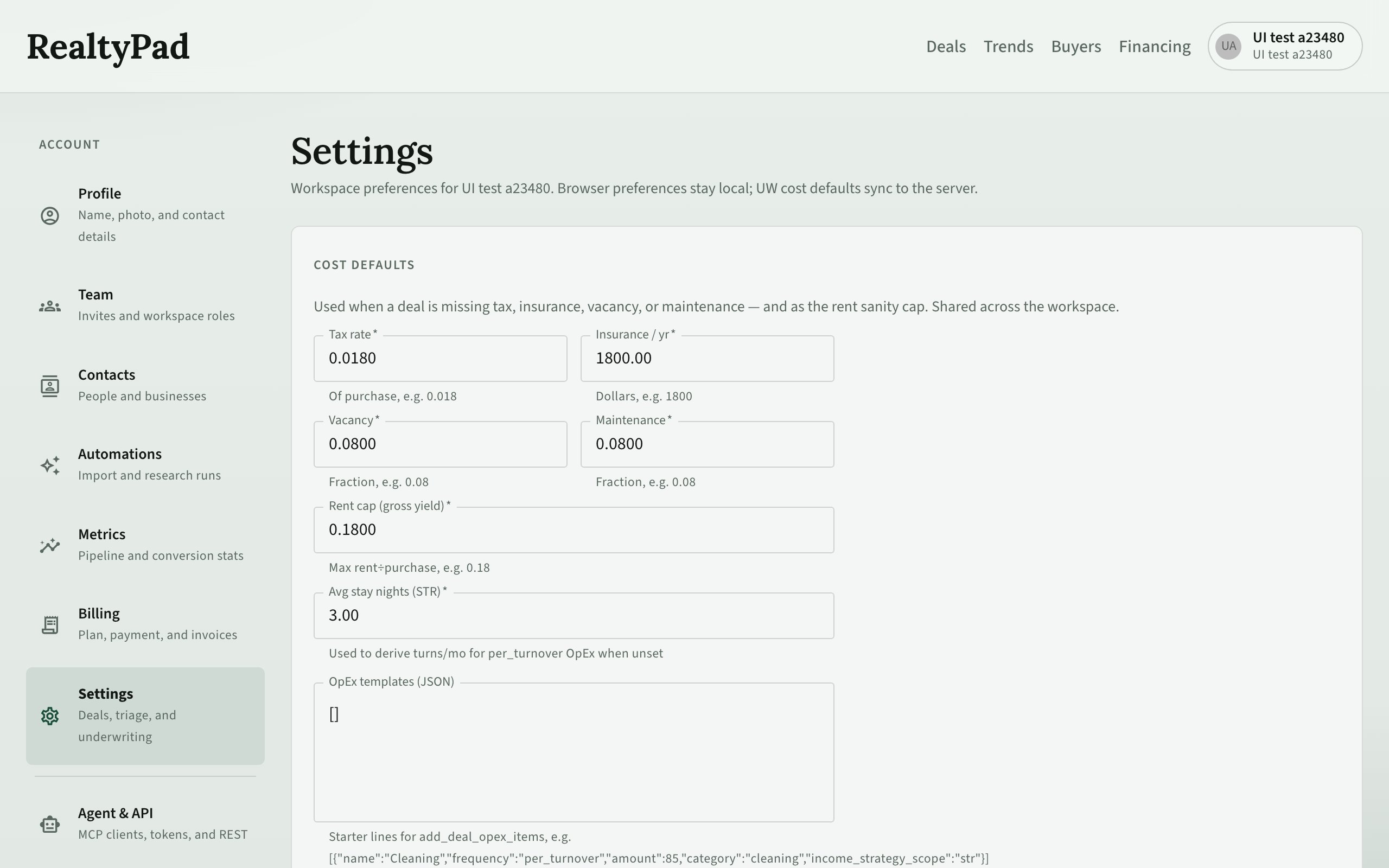
Cost defaults are shared by the whole workspace. RealtyPad uses them when a deal is missing a value, and as a rent sanity cap. Click Save UW cost defaults.
- Tax rate — share of the purchase price per year, for example 0.018.
- Insurance / yr — dollars per year.
- Vacancy and Maintenance — fractions, for example 0.08.
- Rent cap (gross yield) — the highest yearly rent ÷ purchase price RealtyPad accepts, for example 0.18.
- Avg stay nights (STR) — used to estimate cleanings and other per-stay costs.
- OpEx templates (JSON) — an advanced field: starter lines for a deal's recurring operating costs, written as JSON.
The other sections are saved in this browser only. Click Save settings, or Reset defaults to go back.
- Deals list — Default view (List or Map), Default status filter, Default strategy and Home market. See Deals list.
- Triage — Default queue (New, Blocking gaps, Soft gaps, Blocked, Hold — no buyers yet, Ranked or Pursuing) and Show low data-confidence watch deals by default. See Triage.
- Underwriting — Preferred financing profile, suggested on deals that have no profile yet. See Financing profiles.
Agent & API
Agent & API (/settings/agent) connects AI agents such as Cursor, Claude and ChatGPT to the current workspace. Copy the config or MCP URL from MCP access, or click Mint agent token under Long-lived agent token for clients that cannot sign in through the browser. Switch to the right workspace first. See Connect LLM Agent (MCP).
Support
Support opens help articles and live chat.
Getting started
Getting started (in the account menu) reopens the Getting started page. See Getting started.
Switch workspace
At the top of the account menu, Switch workspace shows your current workspace. Click it to list all your workspaces with your role in each, then click one to switch. You can also switch from Profile → Workspaces.
Sign out
Click Sign out at the bottom of the account menu. Do this when you are done on a shared computer.