Deal evidence tabs
The evidence tabs on a deal hold the facts behind its numbers, and you can check and correct each one by hand.
Each tab is in the deal's sidebar (on a phone, in the scrolling tab row). Most tabs have a Research with agent button at the top right that researches only that area; hover over it to see what it does. For the layout of the deal page, see The deal page.
Listing
Listing has three views: Details, Photos and Price history. The button View listing (or View on and the portal name) opens the original listing. Research with agent fetches the listing details again; it needs a listing URL on the deal.
- Details shows the asking price, listing status, time on market and price per square foot. Under What the listing says, click Edit to change the write-up and other listing fields. Use Add listing contact to link the listing agent or another contact. Where it's listed lists each portal link; click + Add a link to add one.
- Photos shows the listing photos. Click Add photos to upload, or paste an Image URL and click Add. Under each photo, click Primary to make it the main photo, or Remove.
- Price history shows a Price over time chart and a Listing history table of list, delist and price-change events. Click Add event to add one by hand (date, event, sale or rental, asking price, source), or Research listing history to fetch it.
Documents
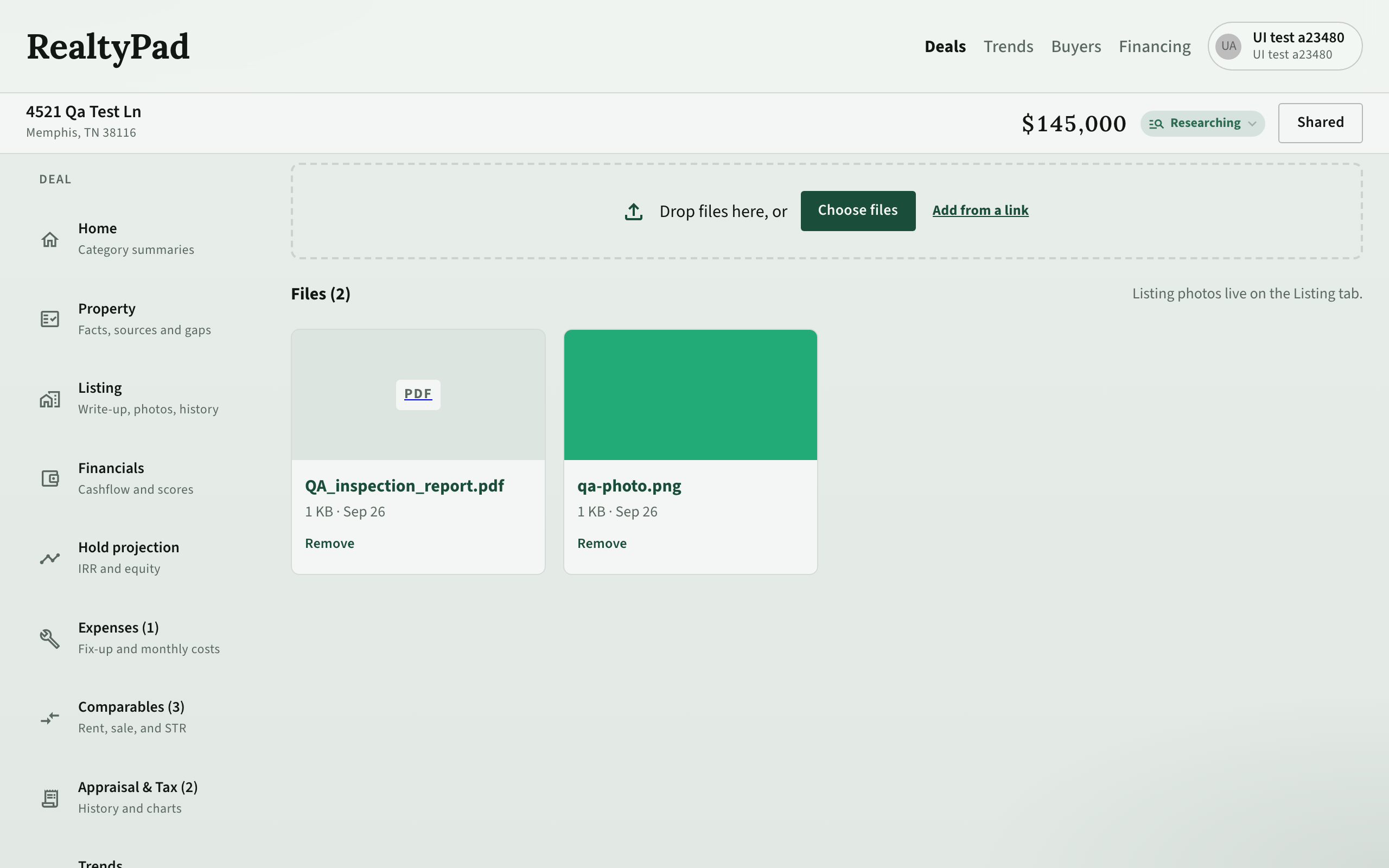
Documents holds files for the deal, such as inspection reports, disclosures and contracts.
- Drag files onto the box, or click Choose files.
- To add a file that is online, click Add from a link, paste the File or image link, and click Add link.
Click a file to open it. Click Remove to take it off the deal. Listing photos are on Listing, not here.
Trends
Trends shows market charts for the deal's area: Prices & rent, Jobs & people, New supply and Borrowing costs. Pick a Market if the deal is linked to more than one (for example a ZIP code and a city), choose a time range, and turn Show forecast on or off. Research with agent refreshes the market data.
The tab is greyed out until the deal has a linked market. See Trends for how to read the charts.
Growth drivers
Growth drivers are local signals that can raise or lower demand near the property: a new employer, a mall, a transit line, a rezoning, a plant closing. They are separate from Trends, which shows market numbers.
Each driver has:
- a Strength: Strong, Weak or Neutral
- a Direction: Upside or Downside
The Growth outlook at the top is the Drivers score, from −100 to +100. Strong drivers count more than weak ones, and neutral drivers count for nothing. Upside drivers pull the score up and downside drivers pull it down. The bar shows the balance of upside against downside. The Drivers score feeds the Overall score, next to the market Growth score.
Drivers are grouped as Pushing values up, Pulling values down and No effect on the score.
To add a driver:
- Click Add a driver.
- Enter a Title, then pick a Category, Strength and Direction.
- Add a Summary, the As of date, and a Source and Source link if you have them.
- Click Add.
On each driver, click Edit to change it, or Hide from score to stop it counting. Hidden drivers move to Hidden from the score, where you can click Show in score or Delete for good. Research with agent looks for local news and adds drivers it finds.
Comparables
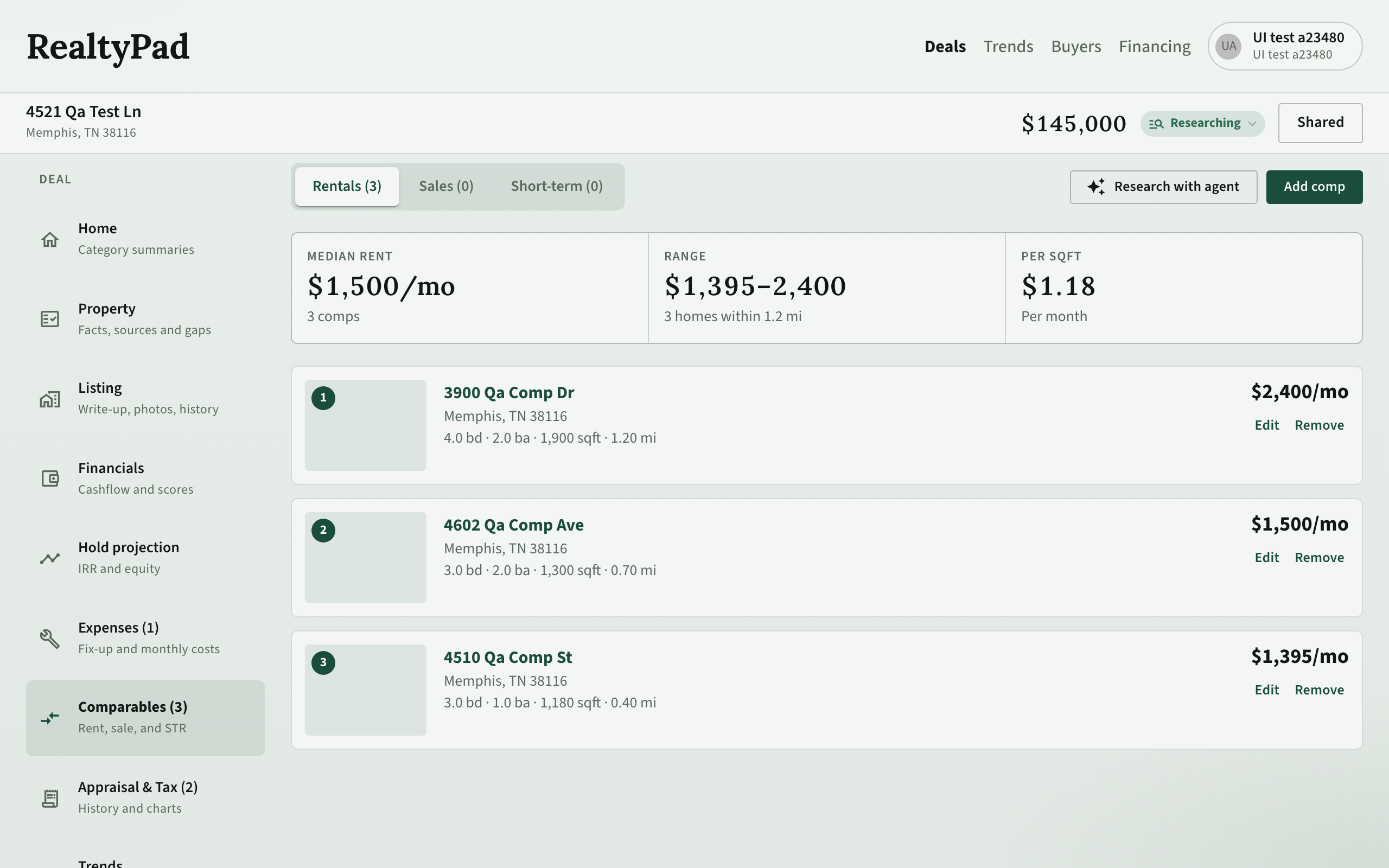
Comparables lists nearby properties that support the rent, sale price or nightly rate. Switch between Rentals, Sales and Short-term. The strip at the top shows the median, the range, the price per square foot and the newest comp.
- Find comps: click Research with agent, tick Rent, Sale or STR in Find comparables, and click Find comps. The boxes start with the types that your strategy needs.
- Add a comp by hand: click Add comp, then enter the kind, address, price, beds, baths, size, distance, source and notes.
- Change a comp: click Edit, or Remove and then confirm.
Expenses
Expenses has two lists. Both totals feed Financials and Hold projection. Research with agent researches both. Owner-occupied deals do not have this tab.
Fix-up costs · one time is the work needed to get the property ready (roof, kitchen, paint). The total counts as cash you need at purchase, not a monthly bill.
- Click Add item and enter a Name, Category, and Materials $, Labor $ or Total $.
- To price an item line by line, click Add line on it. Pick a Type (Materials, Labor or Other), a Quantity, Unit and Cost per unit, or a Line total.
- Use Edit and Remove to change items and lines.
Once an item has lines, change the lines, not the total.
Monthly costs · ongoing are running costs such as cleaning, utilities, property management and reserves. They are part of monthly cash flow.
- Click Add cost and enter a Name and Category.
- Choose How often: for example Every month, Every year, Each guest turnover or Share of rent. Then enter the amount.
- Choose what it Applies to: long-term rental, short-term rental, or both.
Do not add an Airbnb or VRBO platform fee. The short-term rental numbers already include it.
Appraisal & Tax
Appraisal & Tax shows the county's assessed values and tax over the years.
At the top, Tax used in your numbers shows the yearly tax in the cash flow. An Estimate tag means it was worked out from the price and the local tax rate. The seller's bill often includes exemptions that a buyer loses, so an estimate is usually safer than the seller's bill.
- Enter tax bill adds a row for this year with Also use this as the deal's annual tax (and rescore) already ticked, so the bill replaces the estimate in your numbers.
- + Add a year adds a history row to Records: the As of date, the Appraisal / assessed value, the Annual tax, and the source. Tick Also use this as the deal's annual tax (and rescore) only if this row should drive the numbers.
- Delete removes a row.
- Research with agent fetches the records from the listing. It needs a listing URL on the deal.
The County appraisal and Yearly tax charts show how the value and tax changed. In the tax chart, grey bars are the seller's bills and outlined orange bars are your estimate.
Buyers
Buyers connects the deal to your buyer book. Click Review matches to see buyers whose criteria fit, or Add buyer to link one by hand. For each linked buyer you can set their status, create a personal share link, and read and answer their messages. For details, see Buyers and Share deals with buyers.