Deals list
The Deals list is the home page of the app: every deal in your workspace, with search, filters, a map and bulk actions.
To open it, click Deals or RealtyPad in the top bar.
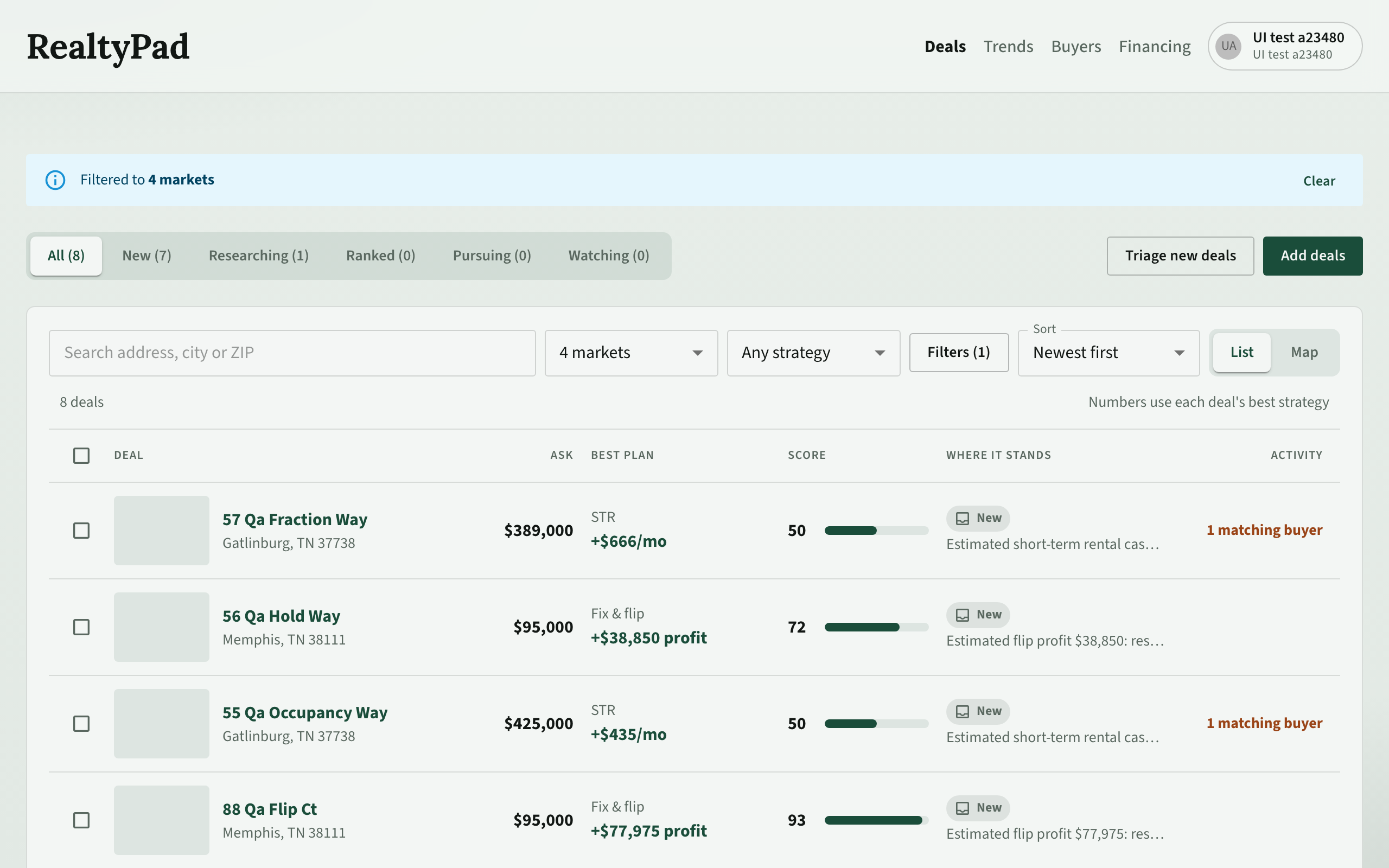
Stage tabs
The tabs above the list show deals by stage: All, New, Researching, Ranked, Pursuing and Watching. Each tab shows a count of deals in that stage, under the filters you have set.
Watching holds deals with status Hold — no buyers yet: the numbers work, but no buyer fits yet. Deals with status Blocked, Passed or Closed have no tab. To see them, use the Status filter.
When you first open Deals, the list uses the default status filter from Settings. Out of the box, that hides Passed and Closed deals. Click All to see every status.
Search, market and strategy
- To search, type in the search box (Search address, city or ZIP). The list updates as you type.
- To show one market, pick it in the market menu (All markets shows every market).
- To show one strategy, pick it in the strategy menu (Any strategy, LTR, STR, Fix & flip, Wholesale or Redevelop).
When the list shows one market, a bar says Filtered to that market. It has buttons to open Trends or Triage for that market, and Clear to show all markets again.
If nothing matches a search that looks like an address, click Import address to add that deal. See Importing deals.
Filters
Click More filters to open the filters panel. When filters are on, the button shows Filters with the number of active filters.
| Filter | What it does |
|---|---|
| Strategy | One or more income strategies. |
| Purpose | Investment or owner-occupied deals (owner-occupied only where your workspace allows it). |
| Status | One or more deal statuses, including Blocked, Passed and Closed. |
| Market | One or more markets. |
| Lead source | Where the deal came from. |
| Min economics | Hide deals with an economics score below this number, for example 60. |
| Archive | Hide archived (default), Include archived or Archived only. |
To reset, click Clear filters.
RealtyPad remembers your search, filters, sort and view for each workspace on this browser, so they are still set when you come back from a deal.
Sort
Use Sort to order the list: Newest first (default), Highest economics or Auction date.
List and map
Use the List / Map switch to change the view.
List shows a table with these columns. The numbers use each deal's best strategy.
| Column | Shows |
|---|---|
| Deal | Photo, street, city, and beds, baths and size. Click the street to open the deal. |
| Ask | The asking price. |
| Best plan | The best strategy and its headline return, such as monthly cash flow or flip profit. |
| Score | The economics score, 0–100, with a bar. |
| Where it stands | The status, and either the number of blocking items or the first line of the status note. |
| Activity | Days listed, and how many buyers match the deal. |
Map shows pins next to deal cards. Use the chips above the map to filter quickly by stage or by Economics ≥ 60, 70 or 80. Reset map filters clears them. When you pan or zoom, click Search this area to show only the deals in view. To go back to your usual markets, click Use home market.
The list shows 50 deals per page and the map 40. Use Previous and Next to page.
Change many deals at once
On desktop, you can change the status of several deals at once.
- Select the check box next to each deal. To select the whole page, use the check box in the header row.
- In the bar that opens, pick a status in Set status.
- Click Apply. For Passed or Blocked, confirm first.
In the same bar, Archive hides the selected deals from lists and queues without changing their status. Unarchive brings them back. Clear clears the selection.
Triage and add deals
- Triage new deals opens Triage, a one-deal-at-a-time queue. If the list shows one market, Triage opens filtered to that market.
- Add deals opens the Add a deal window, where you import a deal from an address or listing URL or enter it by hand. See Importing deals. On a phone, use + Add deals at the bottom of the screen.
To open a deal, click its street (or its card on the map or on a phone). See The deal page.